This page describes Dictum 0.5.
Setup wizard
The setup wizard sets Dictum up in eight steps: the languages you speak, the speech model, optional clean-up by a language model, your words, start at login, then the downloads and a first try.
It opens by itself the first time you start the desktop app, while there is no config.json yet. To run it again later, open Settings, and on the General page click Run setup again next to Setup wizard. In a terminal, dictum init asks the same questions; see the command line reference.
Moving through the wizard
- The line at the top says where you are, such as "Step 3 of 8 · Text clean-up". Next and Back move between the steps.
- Esc or the window's close button closes the wizard and keeps your answers. Open it again, and it comes back at the same step, for as long as the desktop app runs.
- Your settings are saved only once the files are in place. Then the wizard saves your API key,
config.jsonand the login item, in that order, and shows the last step. - On a second run, each step starts with what your config has now.
Languages
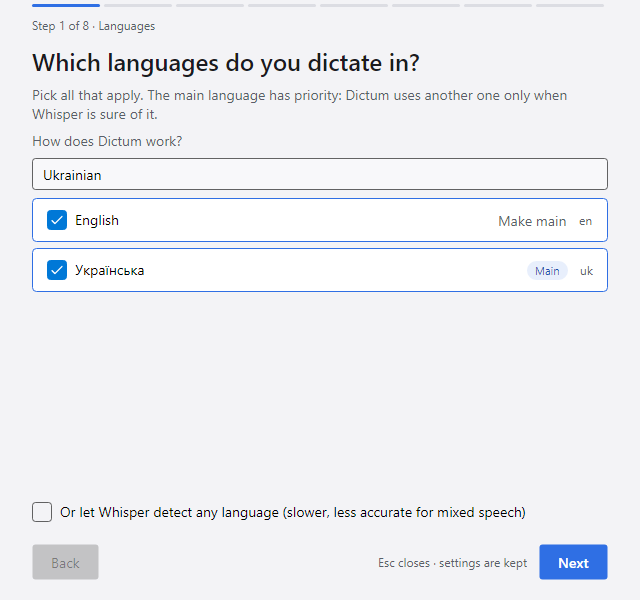
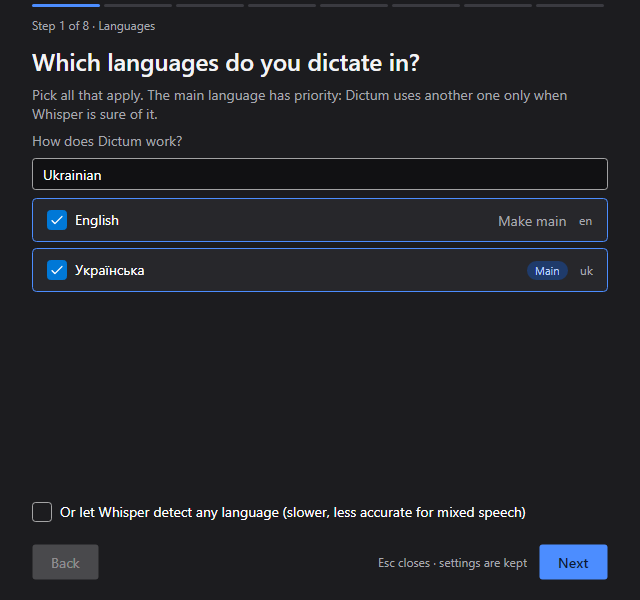
Asks which languages you dictate in. Tick each one; the box at the top finds a language by its name or its code. On a first setup, your system's language and English are ticked.
One of the ticked languages is the main one, marked Main: Whisper writes it unless it is sure you spoke another. The main language is the one you choose with Make main, otherwise your system's language when it is ticked, otherwise the first one you ticked.
How does Dictum work?, under the line about the main language at the top of the step, opens How it works in your browser: what happens from the hotkey to the pasted text.
Instead of a list, you can tick Or let Whisper detect any language (slower, less accurate for mixed speech).
Some languages are so close that Whisper often picks the wrong one, such as Ukrainian and Russian. With two of them ticked, a note suggests keeping the one you use most and putting the other in a profile of its own, with its own hotkey. See Languages.
Writes: the first profile's languages, the main one first, such as uk, en, or auto.
Speech model
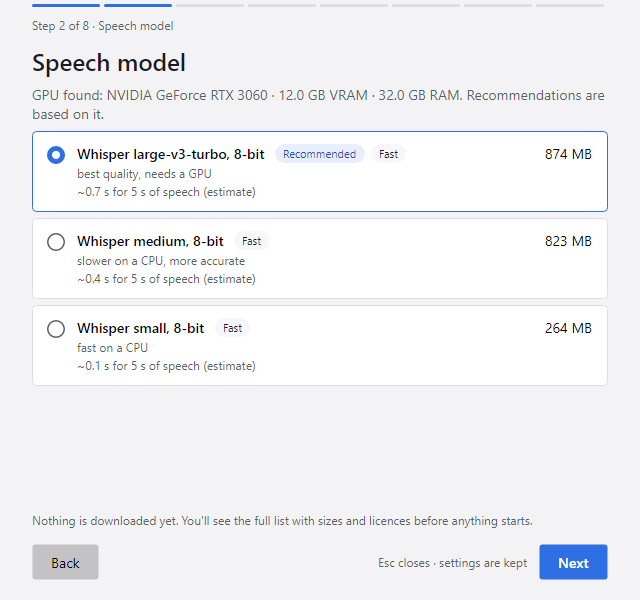
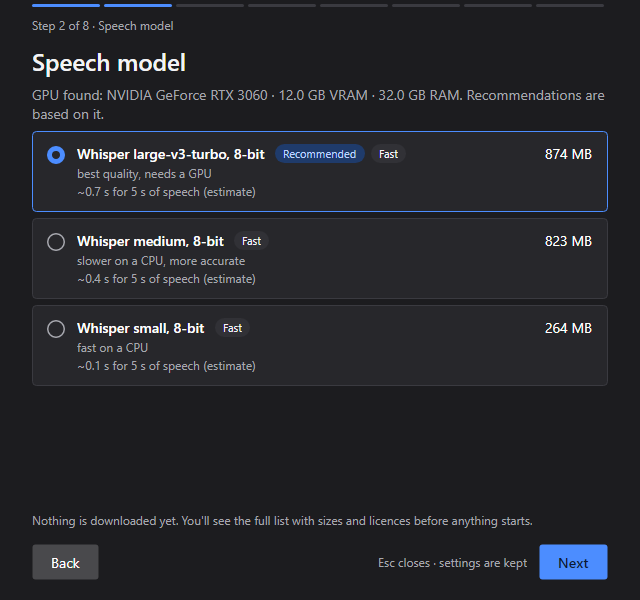
Asks which Whisper model turns your speech into text. The line under the title names the graphics card and memory Dictum found. Each card shows the model, its size, what it suits and how fast it is likely to be on this computer, with a badge: Fast, Usable or Too slow here. Only models that understand the languages from step 1 are offered.
Recommended marks the best fit: "Whisper large-v3-turbo, 8-bit" with a graphics card of at least 2 GB, otherwise "Whisper small, 8-bit". Already on this machine marks a model that needs no download. On a second run, the model you use now is picked; a model file you placed yourself shows under its file name, as "the model your config uses now". Nothing downloads at this step.
Writes: the model of the local Whisper provider the first profile uses, with voice activity detection on.
Text clean-up
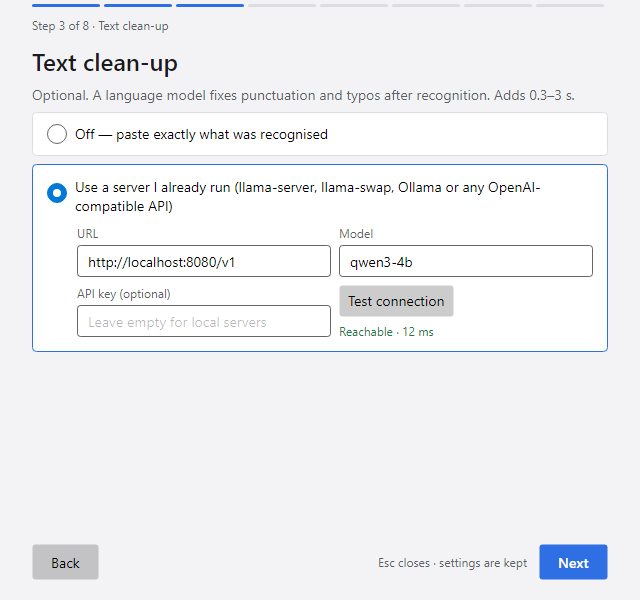
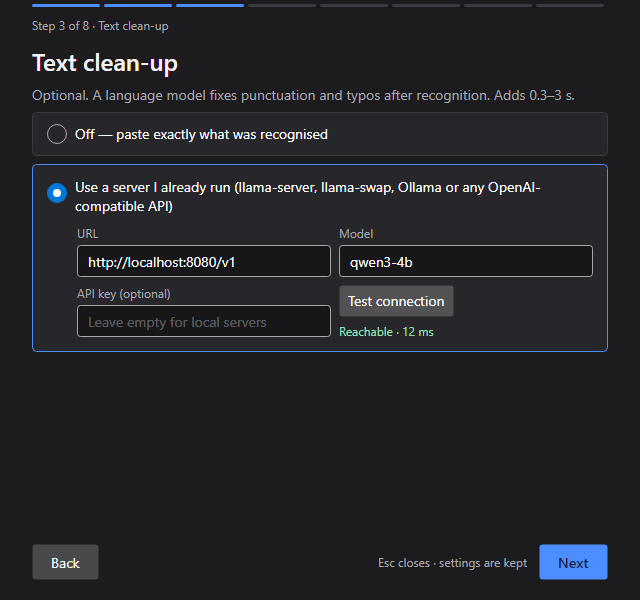
Asks whether a language model should fix punctuation and typos after recognition. It adds 0.3 to 3 seconds to each dictation.
- Off — paste exactly what was recognised: the default on a first setup.
- Use a server I already run (llama-server, llama-swap, Ollama or any OpenAI-compatible API): fill in the server's URL, such as
http://localhost:8080/v1, the Model name on that server and, if the server needs one, the API key (optional). Then click Test connection. Next works only after the test passes for exactly what is on screen; the test checks that the server answers and, when it lists several models, that yours is among them. On a second run, leave the key empty to keep the one stored for the same server; the line under the field then says "Keeps the API key stored for this server."
See LLM clean-up.
Writes: with a server, an LLM processor named cleanup with the built-in cleanup prompt, at the end of the first profile's chain. A key you typed goes to the system keyring when the wizard saves, and config.json refers to it as secret:dictum-processor-cleanup. With Off, cleanup leaves the first profile's chain.
Your words
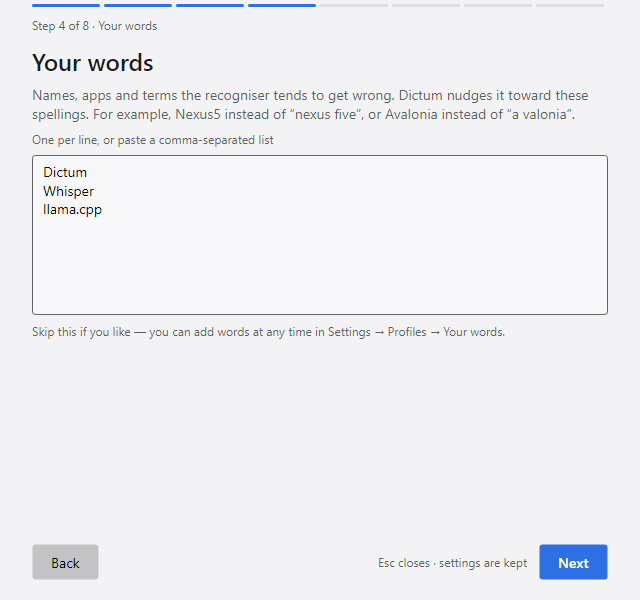
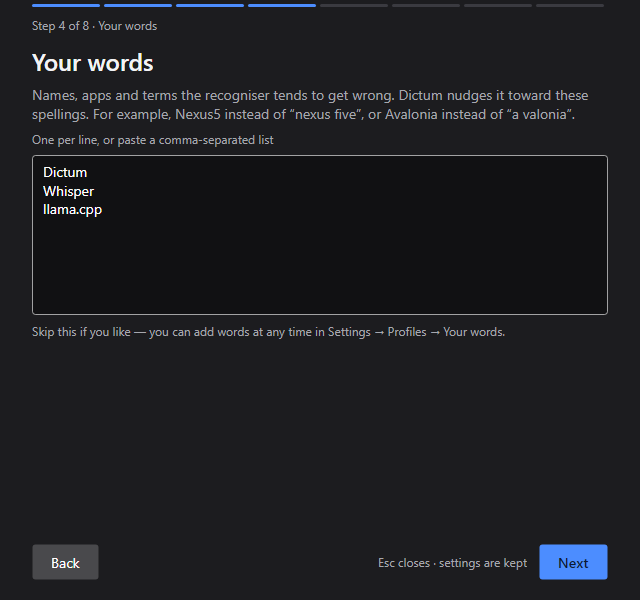
Asks for names, apps and terms the recogniser tends to get wrong, such as Nexus5 or Avalonia. Write one per line, or paste a comma-separated list. You can skip this step and add words later in Settings → Profiles → Your words. See Your words and replace rules.
Writes: the first profile's word list. On a second run the box shows the list you have, and what is left in the box replaces it.
Start at login
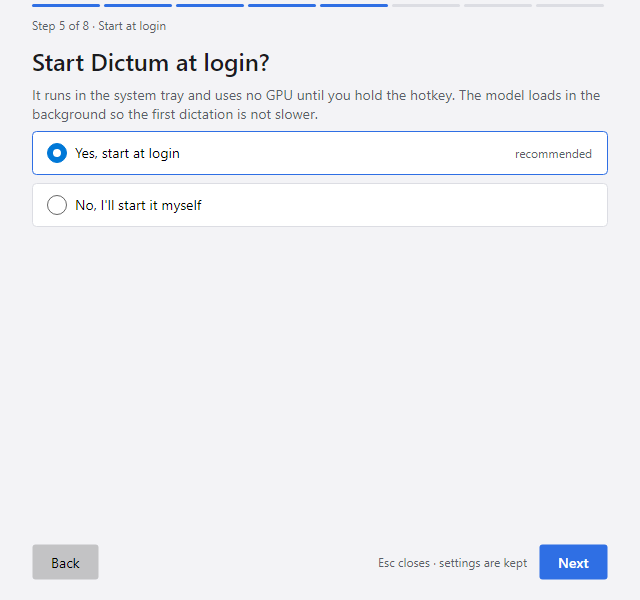
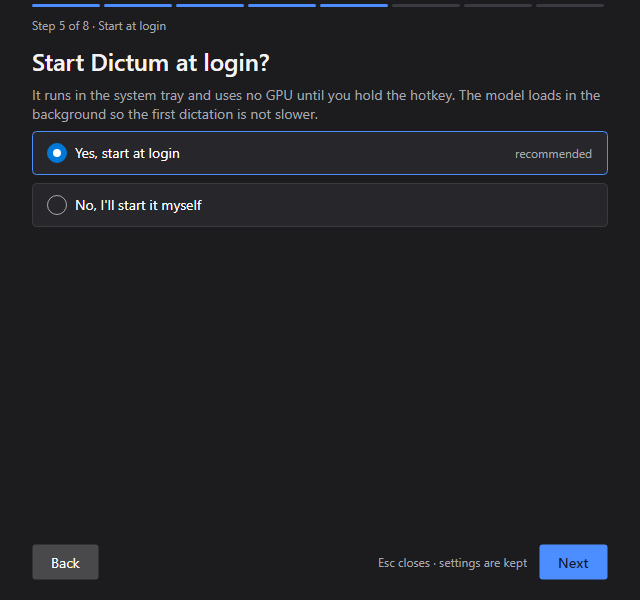
Asks whether the desktop app should start when you log in: Yes, start at login (recommended) or No, I'll start it myself. If your system has no way for Dictum to start at login, the step says so and you go on.
Writes: after config.json is saved, the login item: the value Dictum under HKCU\Software\Microsoft\Windows\CurrentVersion\Run on Windows 11, the file ~/.config/autostart/dictum.desktop on Linux. No removes it. You can change this later in Settings → General → Start Dictum at login.
Downloads
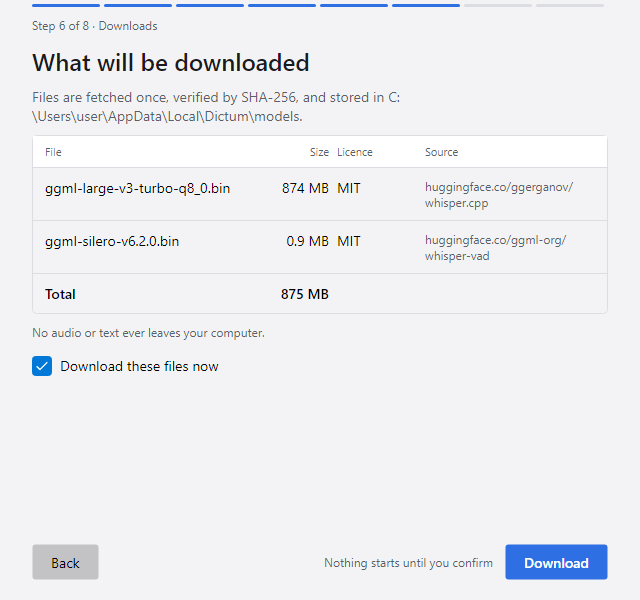
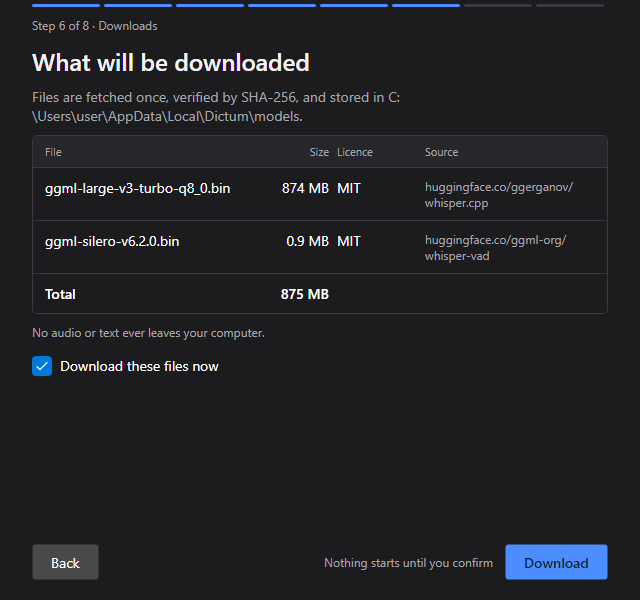
Shows What will be downloaded: each file with its size, licence and source, and the total. The files are the speech model from step 2 and the small Silero voice activity model. Files already on this computer are named and not downloaded again. The step also says where the files go, and whether anything leaves your computer: nothing, unless the clean-up server from step 3 is on another machine, which then gets the text.
Leave Download these files now ticked and click Download. It needs enough free disk space for all the files. With nothing to download, the button is Continue, and the wizard saves at once.
Writes: nothing yet.
Downloading
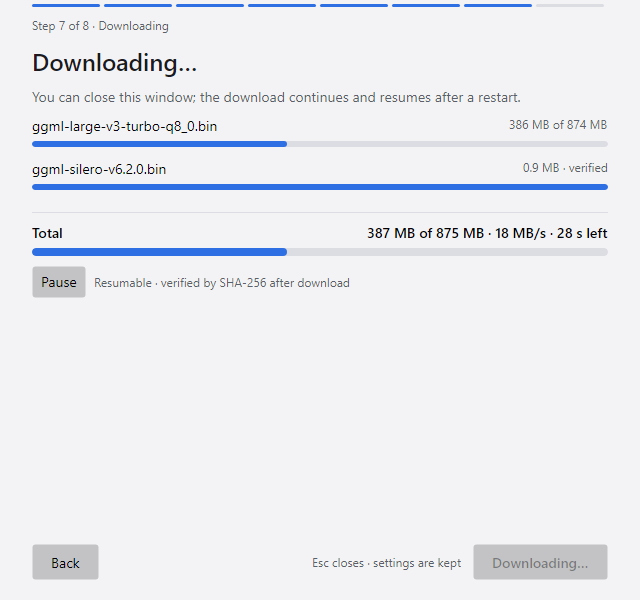
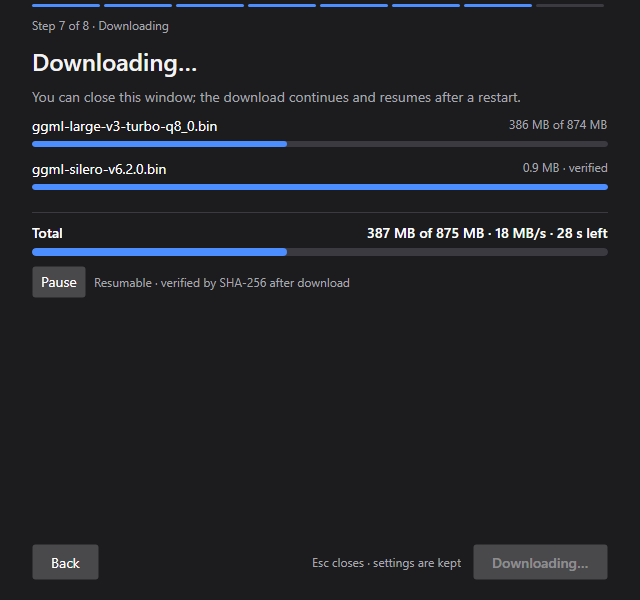
Shows each file's progress and the total, with the speed and the time left. Pause and Resume act on the downloads; a file that fails says why and offers Try again. Each file is checked against its SHA-256 when it arrives.
You can close the window: the downloads go on, and continue after a restart. When the files are in, the wizard comes back by itself. Click Continue to save.
Writes: when you click Continue, the API key, config.json and the login item. If a file went missing in the meantime, the wizard downloads it again first.
Ready
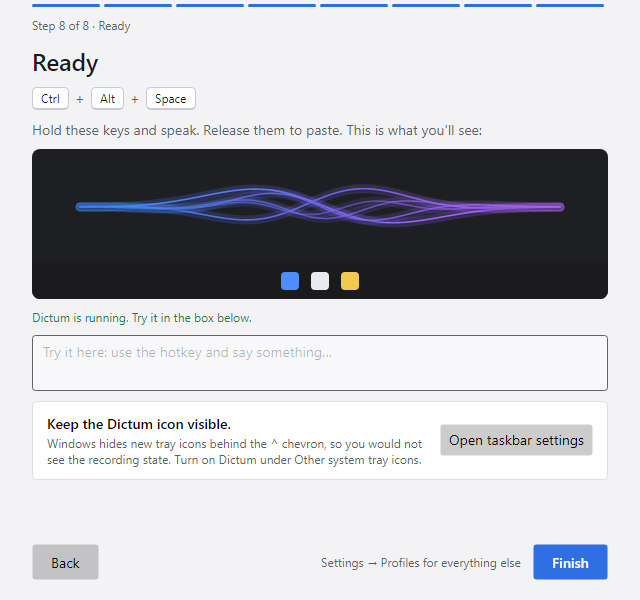
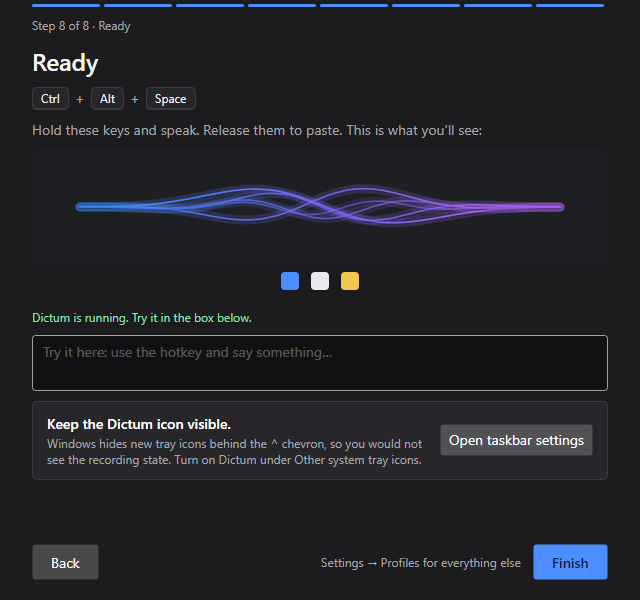
Shows the first profile's hotkey, Ctrl+Alt+Space unless you had chosen another, and how to use it: hold the keys and speak, then let go to paste. With a profile in Toggle mode, press the keys once to start and once more to paste. Below it you see the overlay as it will look, and a line that follows the daemon: starting, loading the speech model, running. Once it runs, use the hotkey in the box below and say something; a line tells you how the try went.
On Windows and on KDE Plasma, unless the tray icon is already visible, a row reminds you to keep it in sight, as it shows the recording state; on Windows, Open taskbar settings takes you to the setting. See Tray icon and overlay.
Finish closes the wizard. Everything else is in Settings, starting with Profiles.
What the wizard writes
The wizard changes only:
- the first profile: its languages, its words, and whether its chain ends with
cleanup; - the local Whisper provider that profile uses,
localon a first setup: its model, and voice activity detection on; - the LLM processor
cleanup, when you chose a server; - the login item of the desktop app.
Other profiles, providers and processors stay as they are. On a first setup, the first profile is dictate, with the hotkey Ctrl+Alt+Space in push-to-talk mode. See Settings for every setting, and Files for where Dictum keeps them.