This page describes Dictum 0.5.
Tray icon and overlay
The desktop app shows what Dictum is doing in two places: an icon in the system tray, which is always there, and an overlay, which appears while you dictate. dictum daemon on its own, without the desktop app, shows neither.
Tray icon
What the icon shows
The ring is Dictum; what is inside it is the state. Hover over the icon to see the tooltip.
| Icon | State | Tooltip |
|---|---|---|
| A ring with a wave | Ready. | "Dictum · dictate · Ctrl+Alt+Space": the profile Dictum uses when a command names none, and its hotkey. Without a hotkey, "Dictum · dictate". |
| A ring with a red dot | Recording. | "Dictum · Recording" |
| A dashed ring that turns, with a wave | Recognising the speech, running the processors or pasting. Also while the daemon starts. | "Dictum · Transcribing…", or "Dictum · Starting…" |
| A ring with two bars | The hotkeys are paused. | "Dictum · Hotkeys paused" |
| A ring with a red exclamation mark | The last dictation failed, or the daemon is not running. | "Dictum · " and the reason, such as "Dictum · Dictation failed". |
A failed dictation keeps the exclamation mark for 30 seconds, or until the next dictation succeeds. When the daemon is the problem, the tooltip says so:
- "Dictum · Daemon not running — restarting…": the daemon stopped, and the desktop app is starting it again.
- "Dictum · Daemon not running — click to restart": it could not be started again by itself.
- "Dictum · The daemon is from another version — click to restart it": a daemon from another version of Dictum still runs, for example after an update.
Two more tooltips go with the plain ring and wave: "Dictum · Not set up yet" before the setup wizard has run, and "Dictum · Stopped" after the daemon was stopped. While models download, the tooltip ends with the progress, such as "· downloading models, 42%".
The icon is dark on a light panel and light on a dark one. In a high-contrast theme the red parts take the panel's colour too; the shape still tells the state.
Clicking the icon
On Windows 11 and in KDE Plasma, a click on the icon opens Settings, or the setup wizard while Dictum is not set up. When the tooltip says "click to restart", a click restarts the daemon instead. Right-click the icon for its menu. On some Linux panels a click opens the menu.
The menu
The menu has these items, from top to bottom. Some show only in certain states.
- Restart daemon
- Only while the daemon is not running and could not be started again, or comes from another version of Dictum. Tries to start it again, or replaces the daemon from another version with this version's.
- Profile
- While the daemon runs. A heading, then one item per profile: its id with its languages, such as "dictate (uk, en)". A tick marks the selected profile: the one that
dictum toggle,dictum startand the other commands use when you do not give--profile, and that the tooltip names. Choose another profile to select it. Each hotkey still starts its own profile. - Pause all hotkeys
- While the daemon runs. Dictum stops listening to all its hotkeys, for example while you play a game that needs the same keys, and the icon shows two bars. Resume hotkeys takes the item's place and turns them back on. A restart of the daemon also ends the pause.
- History
- Opens Settings at the History page, with your recent dictations.
- Settings
- Opens Settings at the General page, or the setup wizard while Dictum is not set up.
- Update available: 0.6.0
- Only when the update check found a version of Dictum newer than yours; the item names that version. Opens the release's page on GitHub in your browser, with its downloads.
- Documentation
- Opens this documentation's overview in your browser, in Ukrainian when the desktop app shows Ukrainian and in English otherwise. If no browser opens, as on a Linux desktop without
xdg-open, the click does nothing else.dictum-gui.log, one of the logs, has the address of every page Dictum opens, so you can copy it from there. - About Dictum
- Opens Settings at the About Dictum page: the version, the system, and links to the documentation and to Dictum on GitHub.
- Quit Dictum
- Closes the desktop app and stops the daemon, so the hotkeys stop working until you start Dictum again.
Keeping the icon visible
The icon is the quickest way to see that Dictum is recording. Some desktops hide new tray icons.
Windows hides new tray icons behind the ^ chevron. To pin Dictum's icon to the taskbar, open Taskbar settings → Other system tray icons and turn Dictum on. Settings → System has a Tray icon row: it says "Hidden in the overflow area" while the icon is hidden, with an Open tray settings button.
KDE Plasma may keep new icons among the System Tray's hidden entries. Right-click the tray, open its settings, and under Entries set Dictum to Shown.
GNOME shows no tray icons unless you install the "AppIndicator and KStatusNotifierItem Support" extension. Without a tray, the desktop app opens Settings at the System page, which then stands in for the icon. To open Settings again later, start Dictum again from the app menu.
Listening overlay
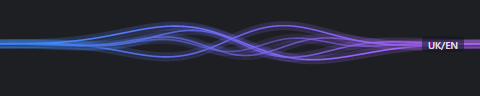
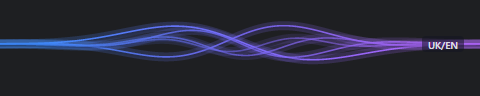


The overlay is a small animation that appears while you dictate, at the bottom of the screen unless you choose the top. It shows on the screen with the mouse pointer, centred, next to the taskbar or panel on that edge. It lets clicks through to the window under it and never takes the keyboard focus, so the text still goes where your cursor is.
On Linux the overlay is an X11 window, so a Wayland session needs XWayland, which most Wayland desktops provide. Without it, Settings → System shows "Needs XWayland" in the Listening overlay row, and the tray icon still shows the state.
Phases
One dictation goes through these phases:
- Listening
- Five waves that move with your voice, in the colours of your theme. When you are silent for half a second, they calm down. If the profile has several languages, a chip shows them, such as "UK/EN".
- Transcribing…
- The waves flatten into one moving line, captioned "Transcribing…", while Whisper turns the recording into text.
- Cleaning up…
- A standing wave captioned "Cleaning up…", while the profile's processors work on the text. Only for profiles with a processing chain.
- Done
- The line draws in and a check mark appears: the text is pasted or copied. If the profile has several languages, the chip shows the one Whisper picked, such as "EN". Then the overlay goes.
- Cancelled
- The line splits and slides apart: the dictation was cancelled, for example with
dictum cancel, and nothing is pasted. - Error
- A red line flashes, and the reason shows for two seconds, such as "Nothing recognised" when you said nothing Whisper could hear, or the error that stopped the dictation.
Changing the overlay
Open Settings → General → Listening overlay → Overlay settings ›. There you can turn the overlay off, and choose its position, size, opacity and colour theme; a preview shows the result. Changes apply at once. See Listening overlay in the Settings reference.
Less motion and high contrast
If your desktop asks for less motion, the overlay shows a level bar with a caption instead of the waves: "Listening", "Transcribing…", "Cleaning up…" or "Cancelled". Dictum reads this setting each time a dictation starts:
- Windows 11: Settings → Accessibility → Visual effects → Animation effects off.
- KDE Plasma: animation speed set to Instant.
- GNOME: animations turned off.
In a high-contrast theme the overlay uses the neutral Mist colours, whatever theme you chose.